Directory tree visualizer for developers

Visualize, Edit, and Annotate Directory Trees

Drop a folder, import an existing tree, or open a ZIP file. dir-tree turns project structure into an interactive tree you can edit, annotate, and export to clean ASCII, JSON, or Markdown.

No sign-up. No install. File contents stay on your device.

Stop hand-aligning README trees. Keep the speed of tree, then add visual editing, comments, styles, and AI annotations.

Local-firstAI commentsASCII export

Live tool

Try the full directory tree reader here

Use the same tool that powers dir-tree.com. Open a local folder, drag in a ZIP, import an existing ASCII tree, adjust the output style, and copy the final result.

Loading the interactive reader

The reader loads on the client side so the SEO homepage can stay fast and content-rich.

Positioning

`tree` is fast. Documentation needs more.

The terminal `tree` command is perfect for a quick snapshot. README files, onboarding docs, and pull requests need focus, comments, consistent styling, and a structure that can be edited after it is generated.

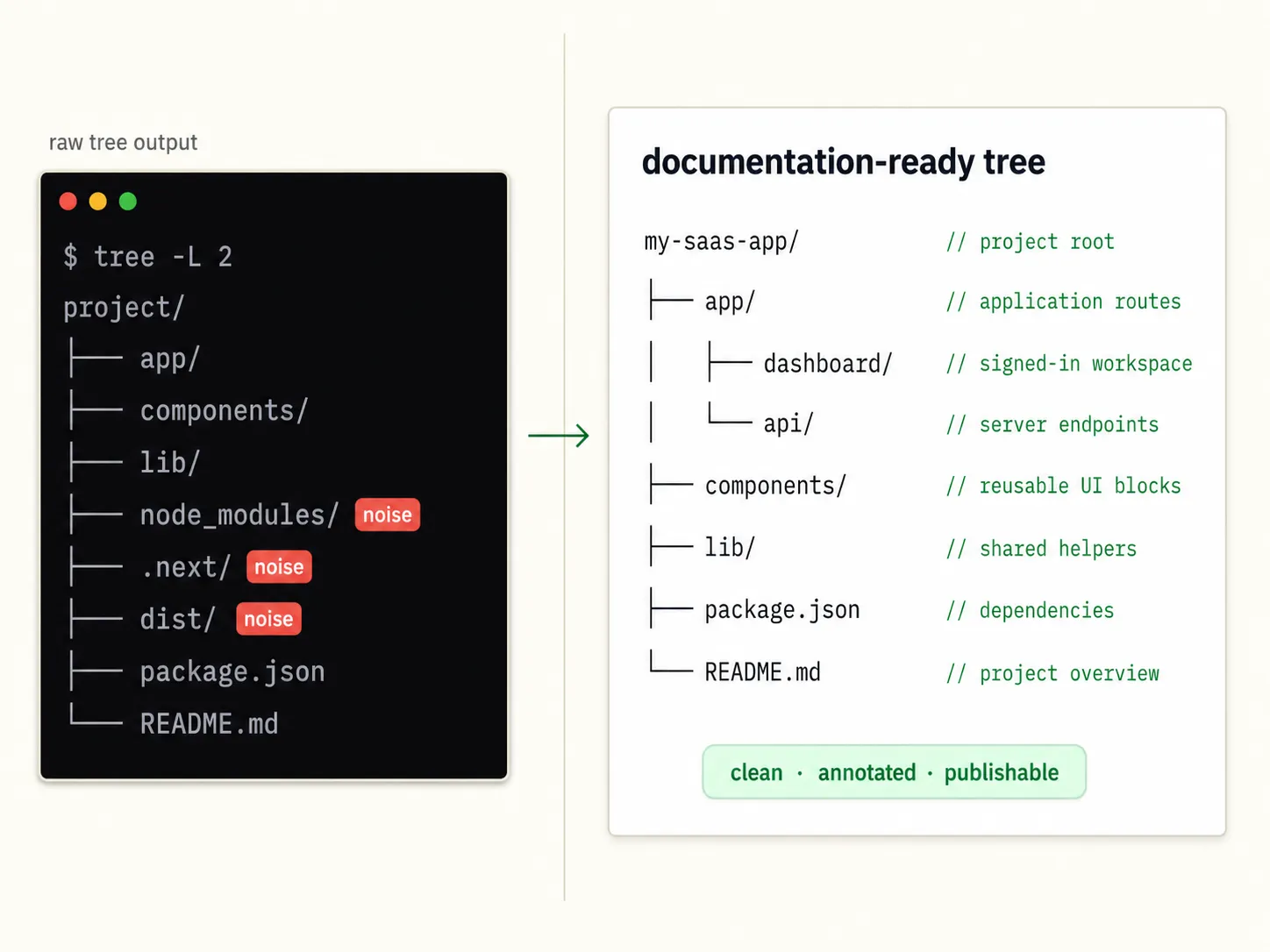
Before and after image showing dir-tree cleaning noisy terminal tree output into an annotated documentation-ready directory tree
Turn a raw tree snapshot into a readable, annotated, publishable project structure.
01

Raw output is not the final artifact

Terminal output is useful, but teams still need to remove noise, align comments, hide build artifacts, and make the result readable before it lands in docs.

Before

$ tree -L 3
.
├── node_modules/
├── .next/
├── src/
└── dist/

After

my-app/
├── src/              // app code
├── package.json      // deps
└── README.md         // guide
02

Manual comments do not scale

Adding comments by hand is slow, easy to misalign, and painful to keep in sync after files move or get renamed.

Before

├── auth.ts   // handles auth
├── api.ts        // api client
└── format.ts // formatting

After

├── auth.ts        // handles auth
├── api.ts         // API client
└── format.ts      // formatting
03

Existing trees should be editable

Import ASCII, JSON, XML, HTML, or Markdown trees from any source and keep working instead of starting over.

Before

Paste tree output
then manually
re-format everything

After

Import → Edit → Export
ASCII · JSON · XML
HTML · Markdown

Features

Everything from reading to publishing

dir-tree covers the full workflow: reading real directories, editing visually, adding AI annotations, and exporting documentation-ready output.

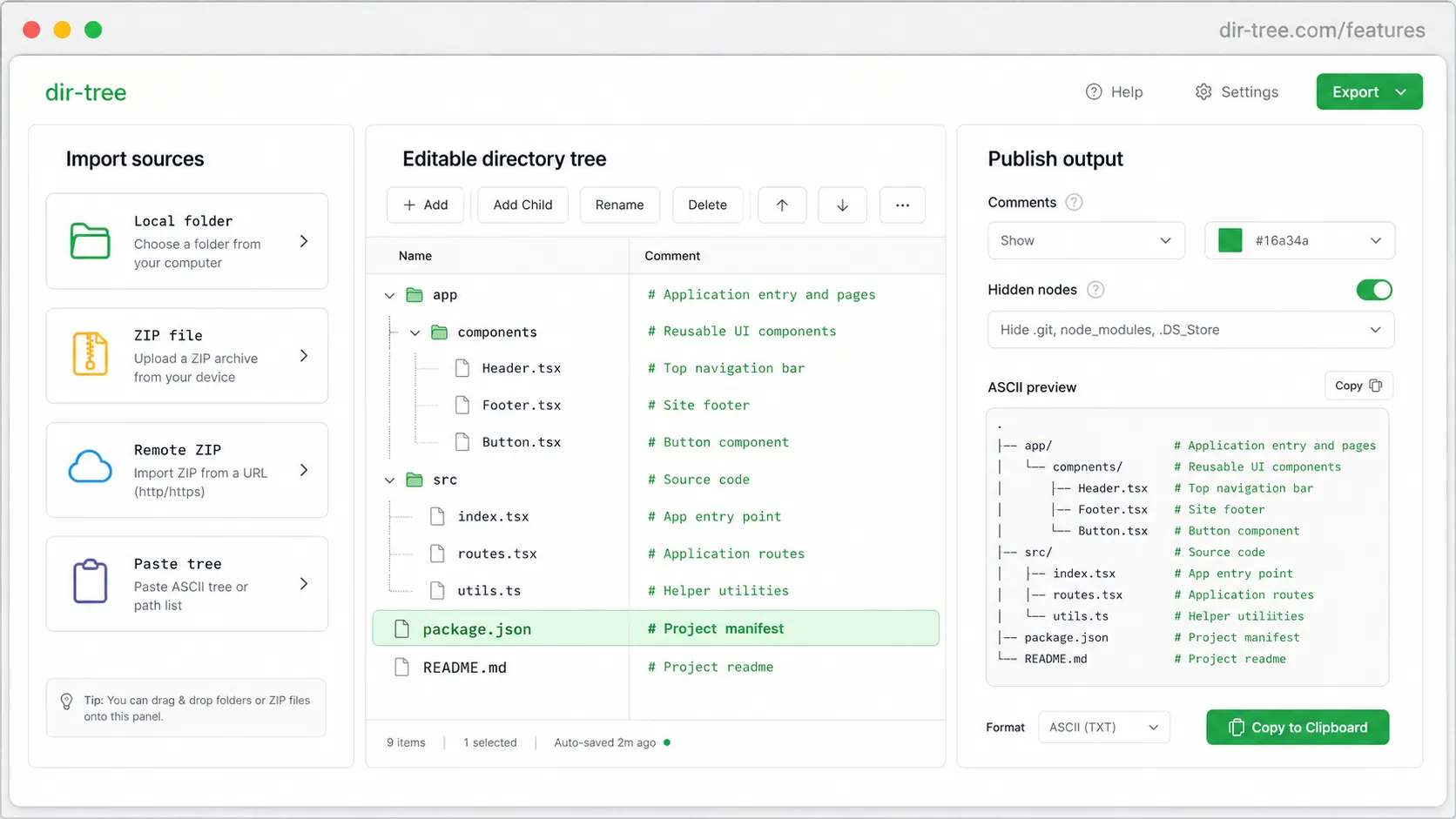
dir-tree.com/features
Product screenshot of dir-tree turning folders, ZIP files, and existing tree output into an editable directory tree
Move from a real folder, ZIP, or existing tree output into an editor, then publish a clean directory tree.

Read real folders, not just typed text

Open a local folder, drag a directory into the browser, choose a ZIP file, or fetch a remote ZIP URL. dir-tree builds from the actual structure, no manual typing required.

Folder · ZIP · Remote ZIP

Import trees from tools you already use

Paste or upload ASCII trees, `tree -J` JSON, `tree -X` XML, HTML output, or Markdown lists. dir-tree reconstructs them as editable trees.

ASCII · JSON · XML · HTML · Markdown

Edit the structure visually

Rename nodes, create folders, delete items, reorder with drag-and-drop, collapse sections, hide noisy files, adjust depth, and apply `.gitignore` patterns.

Rename · Reorder · Hide

Add comments that make the tree useful

Write annotations manually or let AI generate first drafts from file and folder paths. Choose `//`, `#`, `;`, `--`, or a custom template. Column alignment is automatic.

Manual · AI · Templates

Export clean ASCII for docs and READMEs

Switch between Unicode and plain ASCII connectors, show line numbers, append directory slashes, align annotations, then copy or download TXT.

Unicode · ASCII · TXT

Local-first privacy

Core reading, editing, rendering, and export happen in the browser. AI annotation is optional and clearly separated.

Structure only · Opt-in AI

Comparison

How dir-tree compares

Use `tree` for quick terminal snapshots. Use tree.nathanfriend.com for hand-written ASCII diagrams. Use dir-tree when the tree needs to be read from real files, edited, annotated, imported, and published.

Terminal tree

Best for: Fast local snapshots

No visual editing, no annotations, and output often needs manual cleanup before publishing.

tree.nathanfriend.com

Best for: Hand-written ASCII diagrams

You type the structure manually. It does not read real folders or reconstruct imported trees as an editor.

dir-tree

Best for: Documentation-ready directory trees

Read real folders, edit visually, add manual or AI annotations, import existing outputs, and export clean text.

How dir-tree compares
CapabilityTerminal `tree`tree.nathanfriend.comdir-tree
Reads real local directoriesYesNoYes
Browser-based, no installNoYesYes
Drag-and-drop foldersNoNoYes
Local ZIP supportNoNoYes
Remote ZIP URL supportNoNoYes
Import ASCII treesOutput onlyManual inputYes
Import `tree -J` JSONOutput onlyNoYes
Import `tree -X` XMLOutput onlyNoYes
Import HTML / Markdown listsLimitedNoYes
Visual editing and hide nodesNoNoYes
Hide nodes without deleting sourceCommand filterNoYes
Annotation column alignmentNoNoYes
Manual and AI annotationsNoNoYes
Documentation-ready TXT exportRaw outputGenerated ASCIIStyled and annotated

Workflow

From project folder to publishable tree

From raw folder to shareable, annotated ASCII art in under a minute.

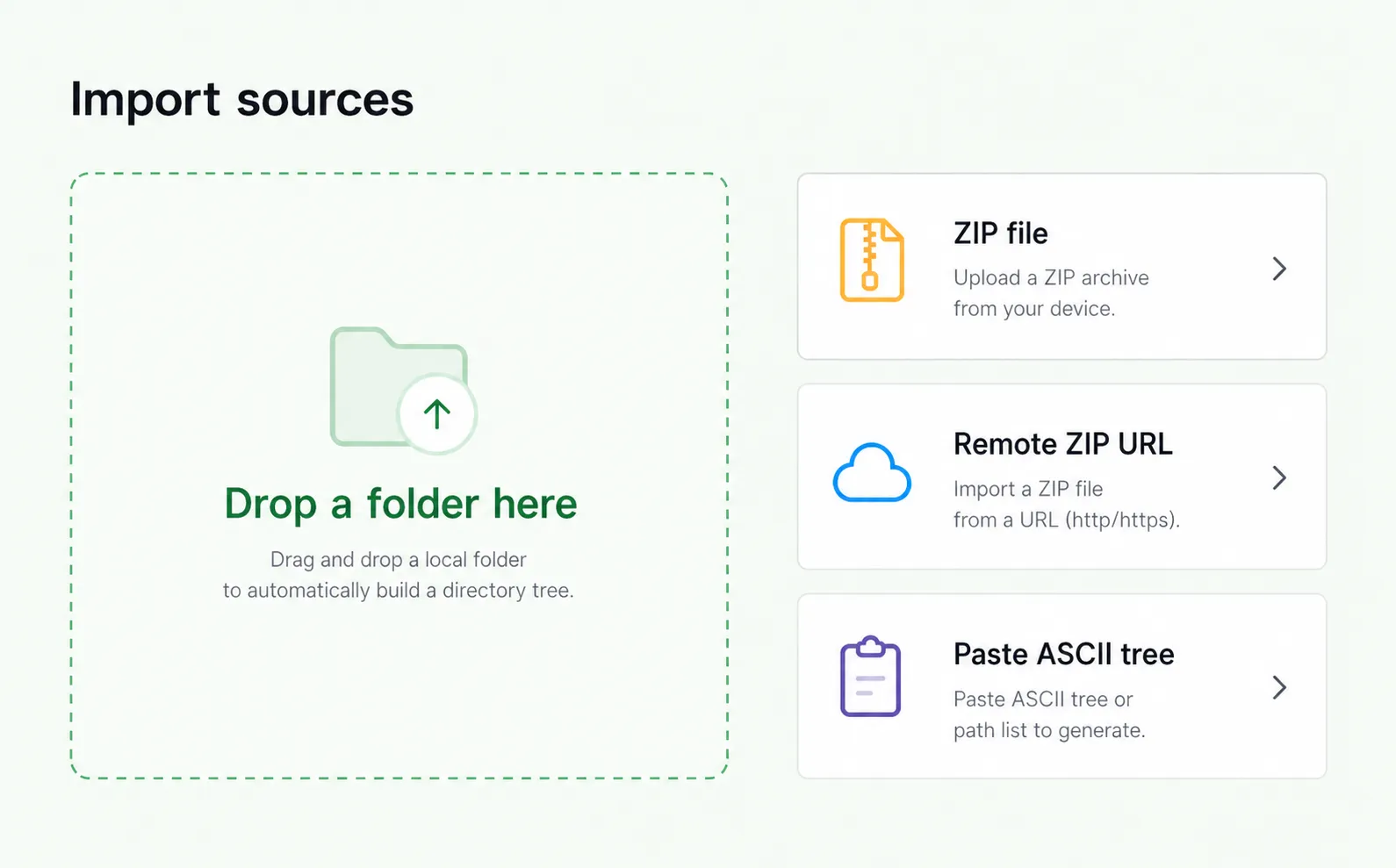
dir-tree interface for folder drag-and-drop, local ZIP, remote ZIP, and existing tree import01
Start from a folder, ZIP, remote URL, or existing output.

Drop, open, or import

Open a local folder, drag a directory, select a ZIP, fetch a remote ZIP URL, or import an existing tree file.

Folder drag-and-dropLocal & remote ZIPASCII · JSON · XML · HTML · MD
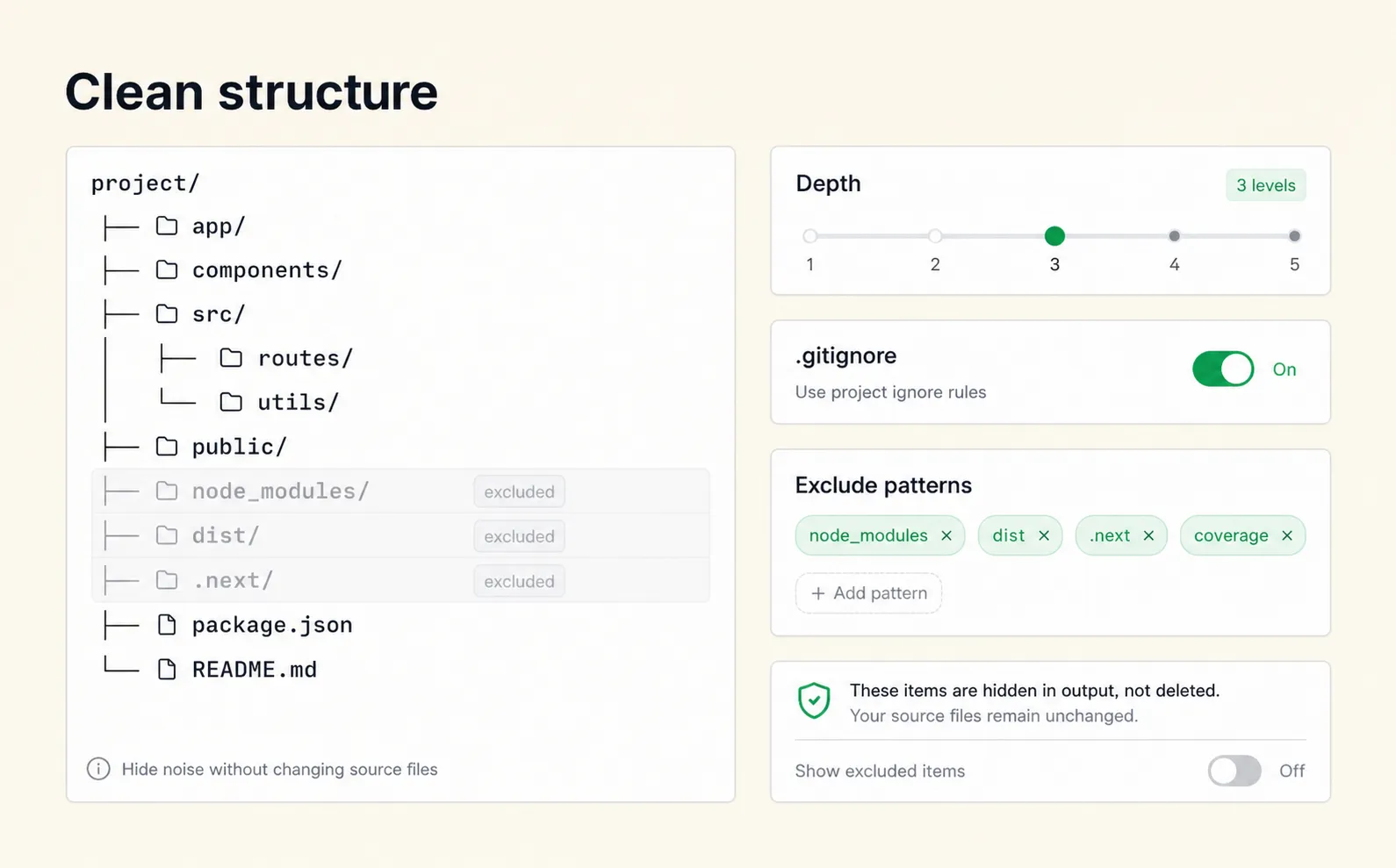
dir-tree interface editing a directory tree and hiding noisy nodes such as node_modules and dist02
Hide noise, adjust depth, and reorder structure without touching source files.

Clean up the structure

Apply `.gitignore`, adjust depth, exclude patterns, sort folders, hide noisy nodes, and edit without touching source files.

Depth control.gitignore supportExclude patternsDrag-and-drop reorder
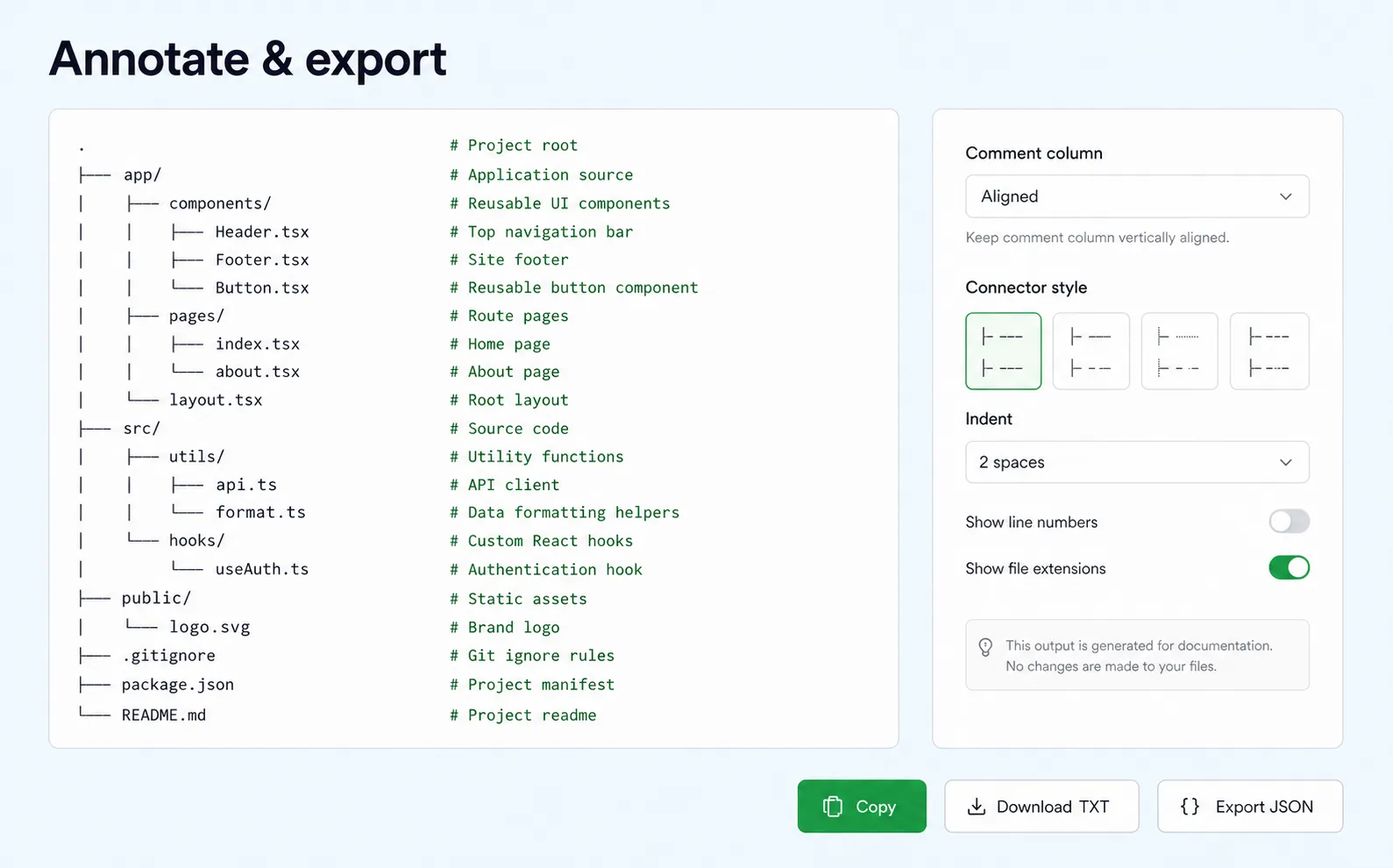
dir-tree interface adding aligned comments and exporting ASCII, TXT, and JSON output03
Align comments, choose connector styles, then copy or download.

Annotate and export

Add comments manually, generate AI annotations, choose a connector style, align the comment column, then copy or download.

Manual or AI commentsUnicode / ASCII connectorsCopy · Download TXT · JSON

Use cases

Built for documentation workflows

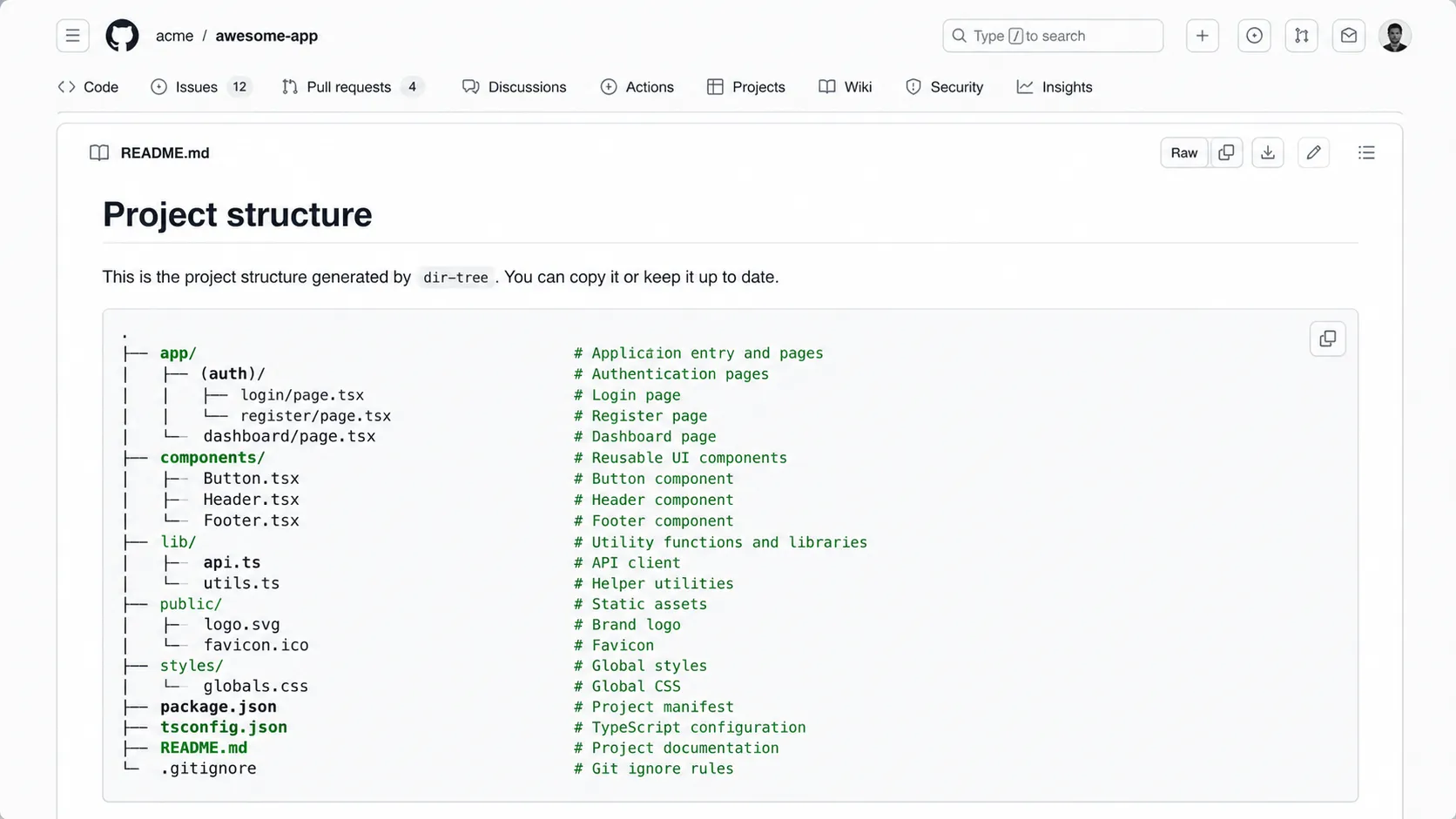
Clean project structure directory tree screenshot embedded in a README document
Publish a clear, annotated project structure in README files.

README project structures

Open-source maintainers & template authors

Generate a clean folder structure for README.md without hand-aligning every line. Hide build artifacts, keep source folders visible, and add short explanations for contributors.

ASCII output
ASCII output
starter-kit/
├── app/                  // routes and layouts
├── components/           // reusable UI
├── lib/                  // shared utilities
└── README.md             // setup guide
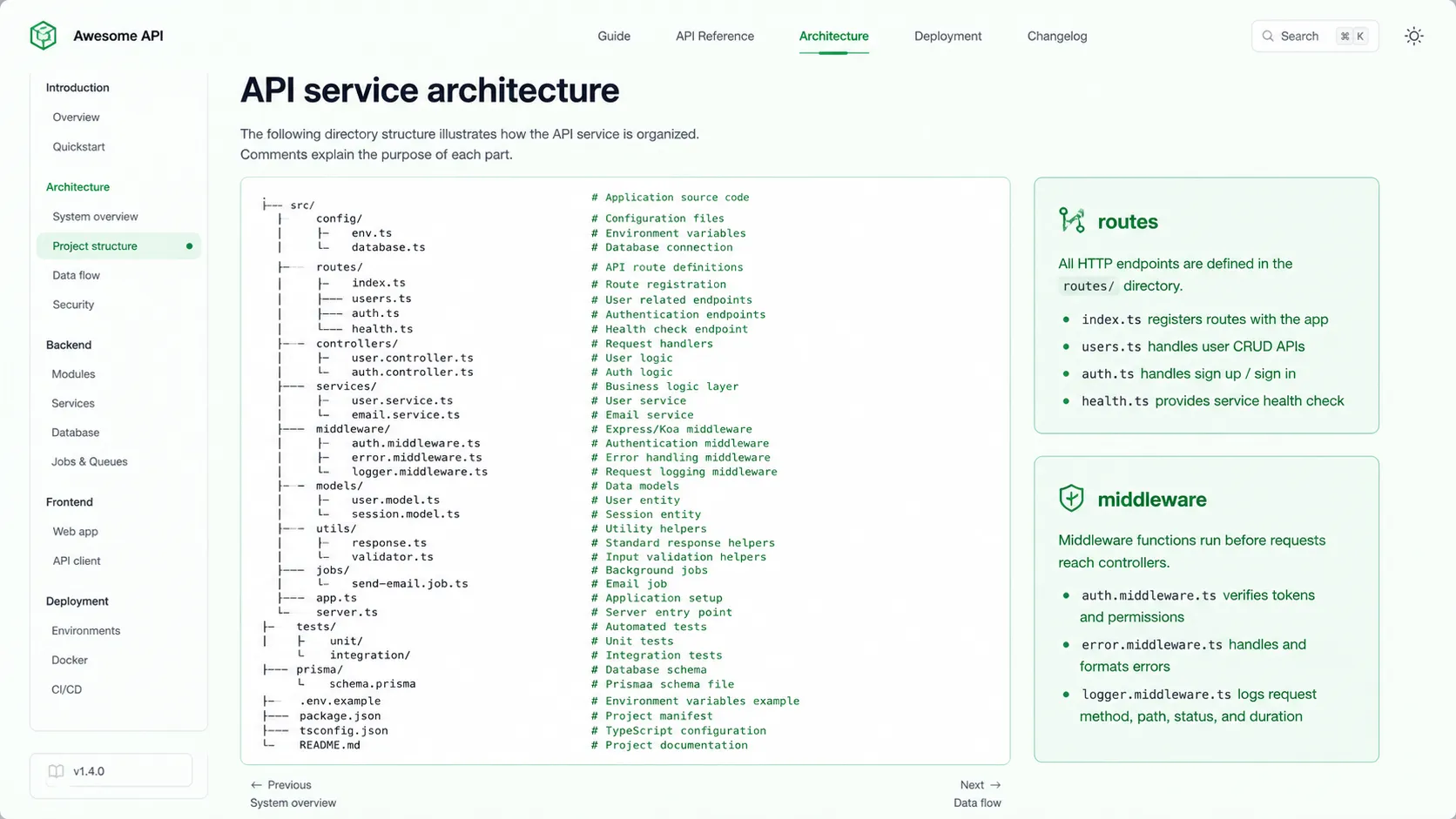
Technical documentation page showing an annotated API service directory structure
Turn project structure into an architecture map readers can follow.

Annotated technical docs

Technical writers & developer advocates

Turn a project folder into an annotated architecture map. Explain what each directory does and keep comment style consistent across all docs pages.

ASCII output
ASCII output
api-service/
├── routes/               // HTTP endpoints
│   ├── auth.ts           // JWT & sessions
│   └── users.ts          // user CRUD
├── models/               // DB schemas
└── middleware/           // request pipeline
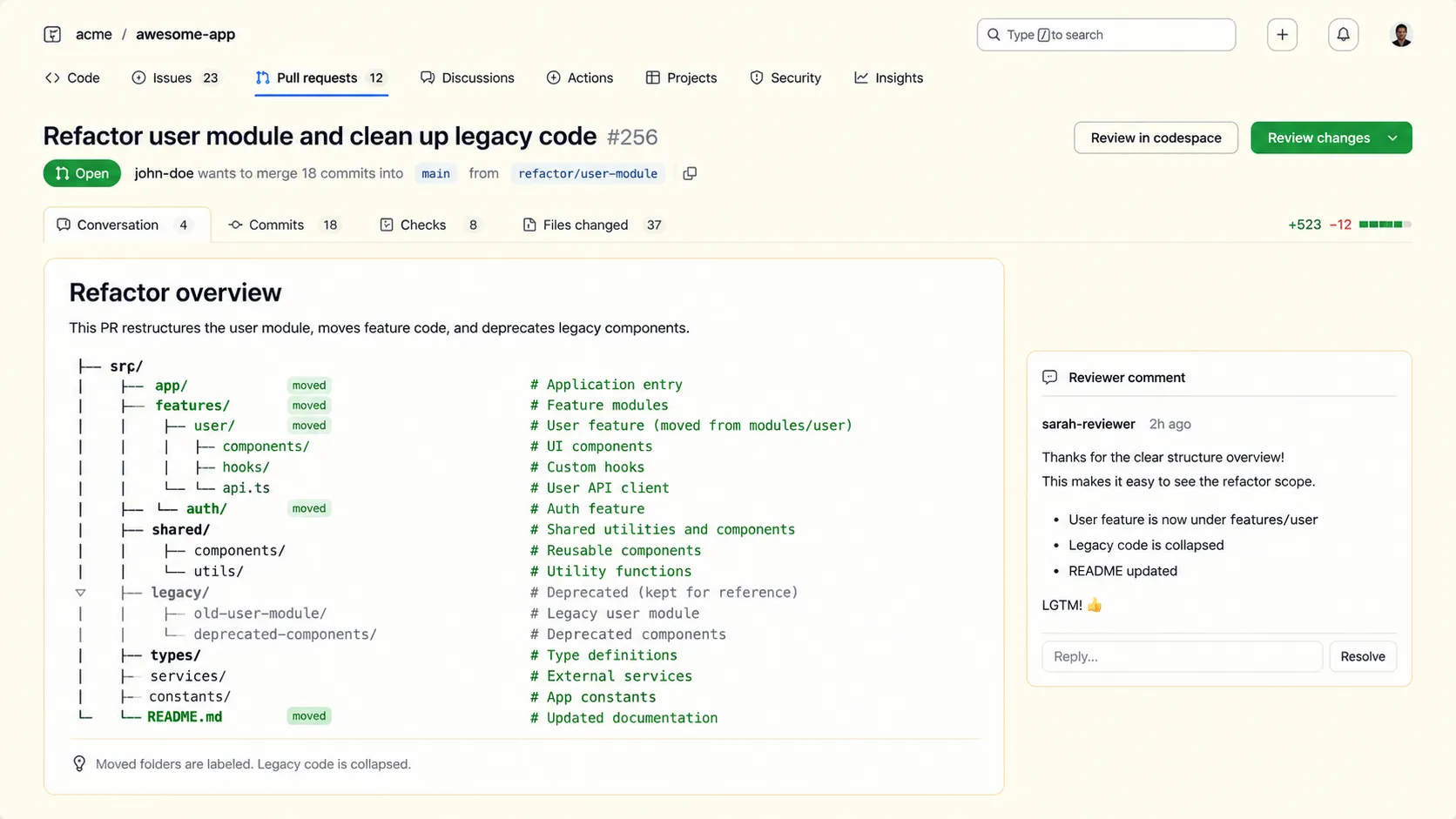
Pull request description using a directory tree to explain moved files and hidden legacy nodes
Explain refactor scope with a compact annotated tree.

Pull request context

Engineers doing refactors

Show reviewers what moved, what was hidden, and why the new layout is easier to navigate. A small annotated tree can reduce review back-and-forth.

ASCII output
ASCII output
src/
├── auth/                 // moved from /pages
├── hooks/                // new shared hooks
├── utils/                // reorganized
└── legacy/               // hidden from output
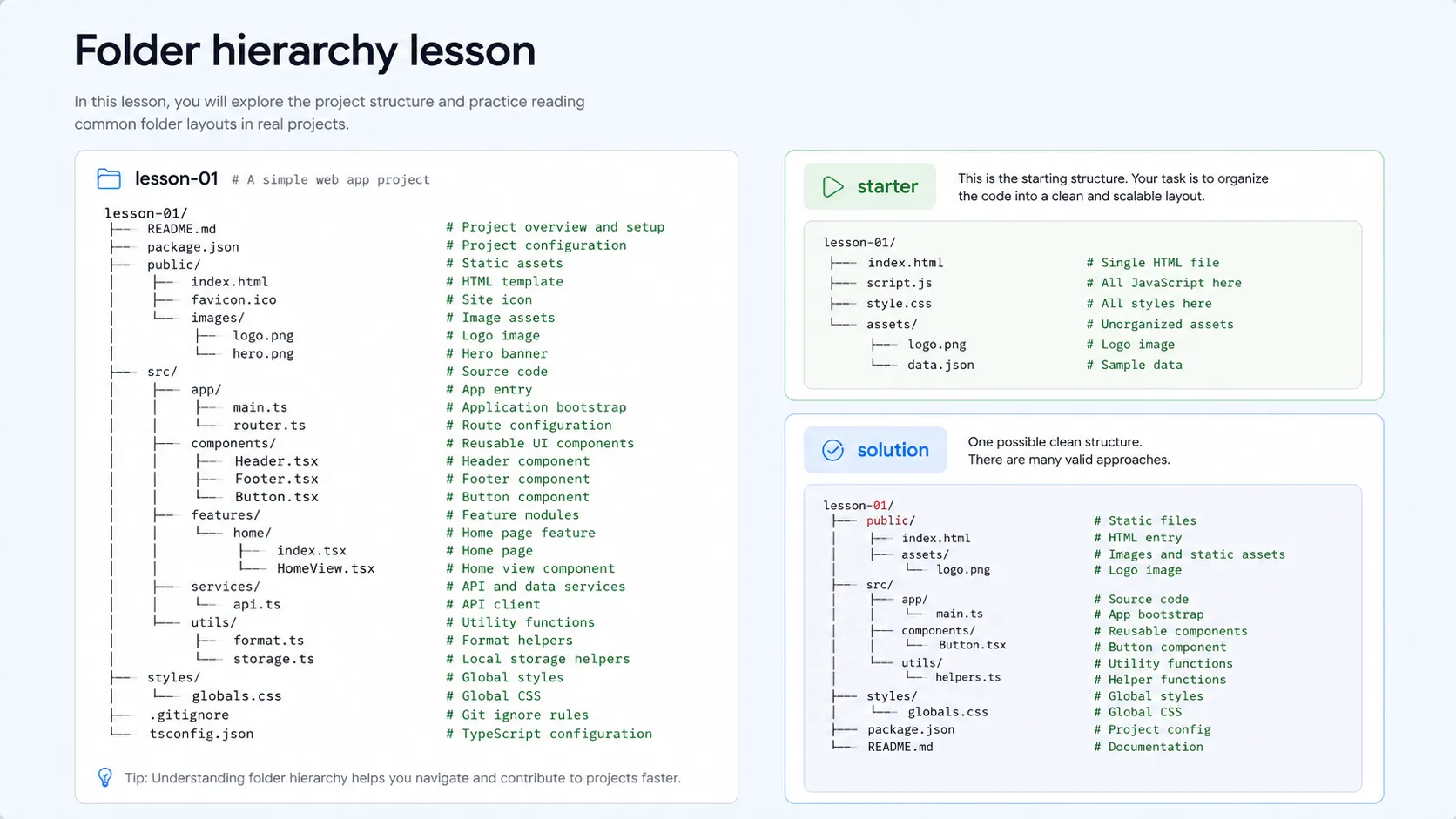
Course material screenshot teaching starter and solution folder hierarchy with a directory tree
Show students both visual hierarchy and exact ASCII output.

Teaching folder hierarchy

CS instructors, bootcamp teachers & course creators

Create examples that show how a project is organized. Students see both a visual tree and the exact ASCII output used in course materials.

ASCII output
ASCII output
lesson-01/
├── starter/              // student begins here
│   └── index.js          // entry point
└── solution/             // hidden in exercise

Privacy

Privacy-first by default. Clear boundaries for AI.

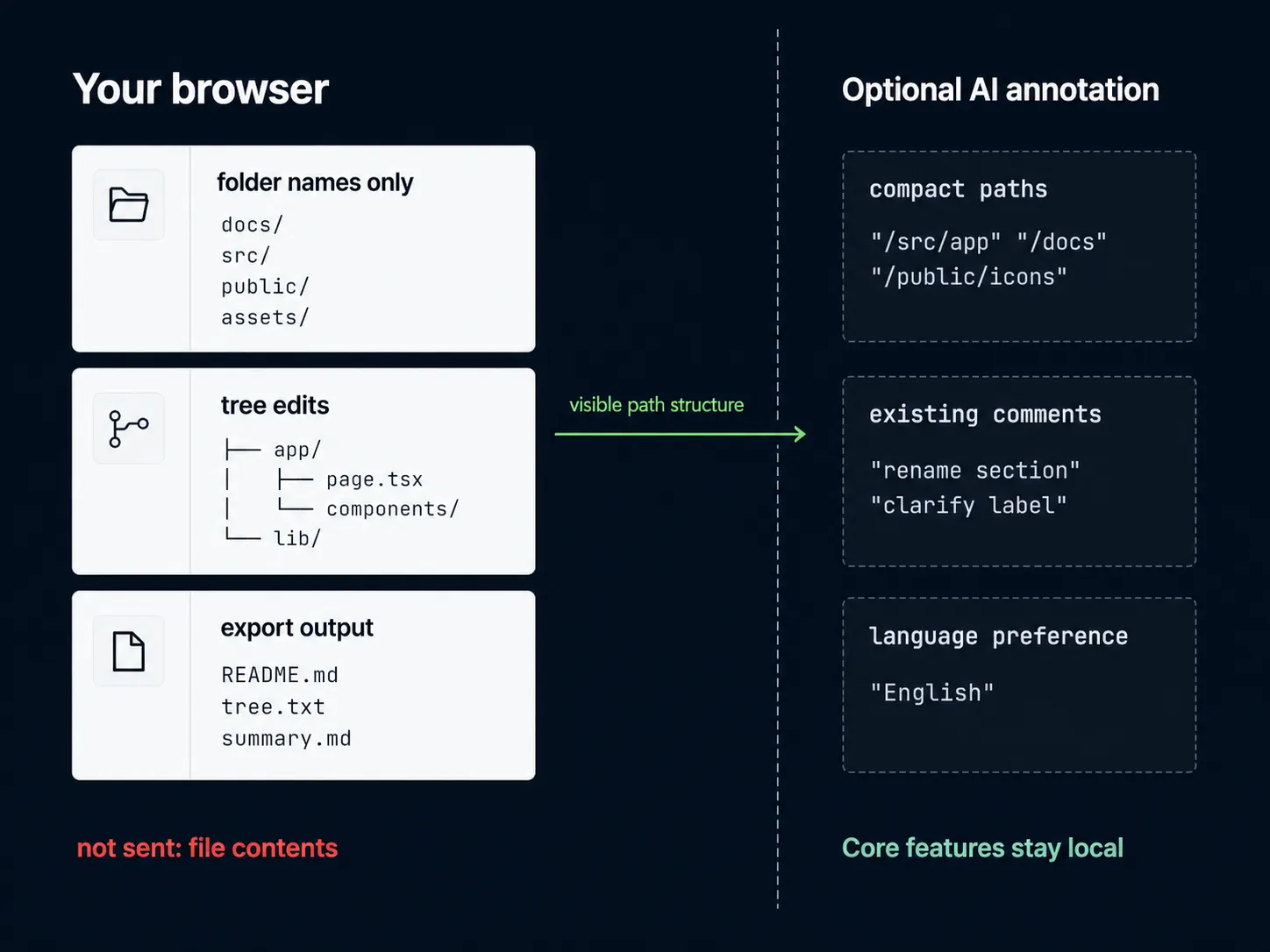
Core directory reading, editing, rendering, and export run in your browser. AI annotation is optional and only sends compact path structure, existing annotations, and language preference.

Data boundary diagram showing dir-tree processing directory trees locally in the browser and sending only compact path structure for optional AI annotation
Core work stays in the browser; optional AI receives only compact path structure.
01

Core features are local-first

Open folders, parse local ZIP files, edit trees, render ASCII, and export results in the browser.

02

File contents are not used

dir-tree needs names, hierarchy, and optional display metadata. It does not inspect source code or document bodies for core tree generation.

03

AI annotation is opt-in

When you request AI comments, only the compact visible path tree and existing annotations are sent. File contents are not sent.

Optional AI data flow

  • Visible paths
  • Node markers
  • Existing comments
  • AI provider
  • Suggested comments

File contents, source code, file sizes, and modification times are not part of the AI annotation payload.

Proof

Built for the moments when raw tree output is not enough

Four workflows where dir-tree fits better than a terminal command.

01

README maintainers

need clean output

Generate an annotated structure in seconds, not 20 minutes of hand-aligning.

02

Technical writers

need annotations

Turn a project folder into a fully annotated architecture map for technical docs.

03

Code reviewers

need structure context

Paste a focused, annotated tree into a pull request comment to explain a refactor.

04

Teachers

need clear examples

Create directory examples that work in slides, tutorials, and onboarding material.

Formats

Works with the formats developers already have

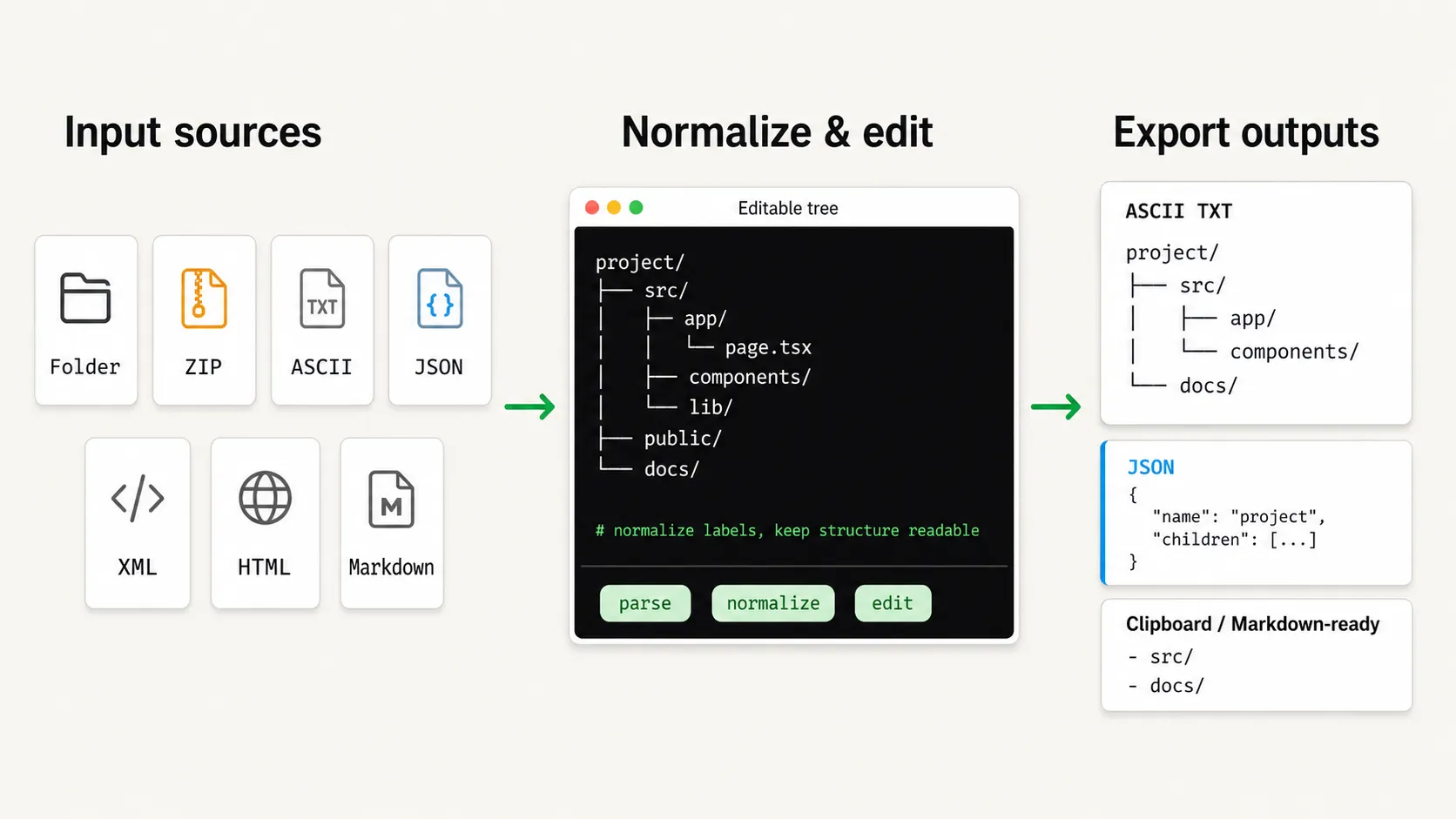
Whether your tree comes from a terminal command, a Markdown note, a browser export, or a ZIP archive, dir-tree can turn it into an editable structure.

Format pipeline diagram showing dir-tree importing folders, ZIP, ASCII, JSON, XML, HTML, and Markdown and exporting TXT, JSON, and Markdown-ready output
Normalize many directory tree sources into one editable structure, then export for docs.
FolderZIPASCIIJSONXMLHTMLMarkdownParse + NormalizeEditable treeASCII TXTJSONClipboard
Works with the formats developers already have
Format / SourceImportExportNotes
Local folderYesNoDirectory picker or drag-and-drop
Local ZIPYesNoParsed entirely in browser
Remote ZIP URLYesNoBrowser fetches the URL
ASCII treeYesYesPlain text directory trees
JSON treeYesYesdir-tree JSON and tree -J output
XML / HTML / MarkdownYesPlannedtree -X, tree -H, docs and notes

FAQ

Questions developers ask before dropping a folder

Is dir-tree free to use?

Yes. The core directory tree reader, editor, annotation editor, and ASCII export workflow are intended to stay free for individual use.

Why not just use the terminal `tree` command?

Use `tree` when you need a quick terminal snapshot. Use dir-tree when you need to edit the structure, hide noisy nodes, add aligned comments, import existing output, or publish the result.

How is dir-tree different from tree.nathanfriend.com?

tree.nathanfriend.com is useful for typing a simple indented structure and generating ASCII. dir-tree reads real folders and ZIP files, imports existing tree output, edits visually, and adds annotations.

Are my files uploaded to dir-tree servers?

For core features, no. Folder reading, ZIP parsing, tree editing, ASCII rendering, and export all run in your browser. dir-tree builds structure from file and folder names; it does not upload file contents for core tree generation. Local ZIP parsing reads archive bytes in the browser to discover entries, but file contents are not uploaded.

What data is sent when I use AI annotations?

AI annotation is optional. It sends a compact visible path tree, node type markers, existing annotations, node count, and language preference so AI can respond in the right language. It does not send file contents, source code, file sizes, or modification times.

Can dir-tree import output from `tree -J`, `tree -X`, or `tree -H`?

Yes. dir-tree is designed to parse common external tree formats, including ASCII text, JSON, XML, HTML, and Markdown list structures.

Should I use AI annotation for sensitive projects?

Use caution if file or folder names contain client names, internal project codenames, unreleased product names, or other sensitive information. You can use manual annotations instead, rename sensitive paths before generating AI comments, or limit the visible tree depth before sending.

Which browsers are supported?

dir-tree works best in modern desktop browsers with folder picker or folder drag-and-drop support. Chromium-based browsers provide the strongest File System Access API support. Firefox and Safari can use drag-and-drop or legacy file picker fallbacks, though large directory loads may vary.

Does dir-tree read file contents?

No, for core features. dir-tree builds structure from names, hierarchy, and optional metadata for display. It does not inspect source code, document bodies, binary file contents, secrets, or credentials.

Can I use dir-tree offline?

The core workflow, including reading, editing, rendering, and exporting, runs in the browser and can work offline after the page has loaded. AI annotation and remote ZIP fetching require network access.

Is there a CLI or API?

Not yet. A CLI and API are strong candidates for future monetization. The CLI could support local batch workflows such as auto-updating README trees in CI, while the API could provide programmatic tree rendering and AI annotation for documentation platforms.

Ready to visualize your first directory tree?

Use the live reader above. No sign-up, no install, browser-first.
Try dir-tree in your browser